In this chapter, we will learn how to create a form using Bootstrap. Bootstrap can create different styles of forms with some simple HTML tags and extended classes.
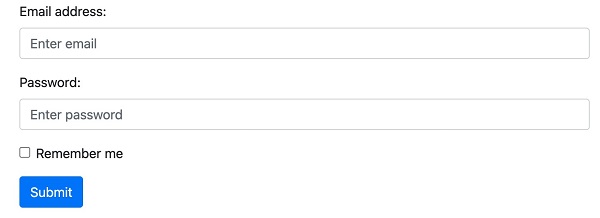
Form elements, textarea, and select elements are used in the case of the Stacked forms (full screen width): vertical Inline forms: horizontal Bootstrap provides two types of form layouts: The following example uses two input boxes, a check box, and a submit buttonto create a stacked form: Display effect: In the example, we use The check box (checkboxe) uses a different tag. They use the If you want form elements to be displayed side by side, use the The two input boxes of the following example are displayed side by side to create an inline form: Display effect: Use Display effect: We can pass through the Display effect: Use Use Use Display effect:
.form-control
class, the width is set to 100%. 7.31.1. Bootstrap5 form layout 
Stack form 
7.31.2. Example 
<form>
  <div class="mb-3 mt-3">
    <label for="email" class="form-label">Email:</label>
    <input type="email" class="form-control" id="email" placeholder="Enter email" name="email">
  </div>
  <div class="mb-3">
    <label for="pwd" class="form-label">Password:</label>
    <input type="password" class="form-control" id="pwd" placeholder="Enter password" name="pswd">
  </div>
  <div class="form-check mb-3">
    <label class="form-check-label">
      <input class="form-check-input" type="checkbox" name="remember"> Remember me
    </label>
  </div>
  <button type="submit" class="btn btn-primary">Submit</button>
</form>
.form-label
class to ensure that the tag element has a certain inner margin.
.form-check
wrap around the container elements. Check boxes and radio buttons use the
.form-check-input
whose label can be used
.form-check-label
class.Inline form 
.row
and
.col
: 7.31.3. Example 
<form>
  <div class="row">
    <div class="col">
      <input type="text" class="form-control" placeholder="Enter email" name="email">
    </div>
    <div class="col">
      <input type="password" class="form-control" placeholder="Enter password" name="pswd">
    </div>
  </div>
</form>

Text box 
textarea
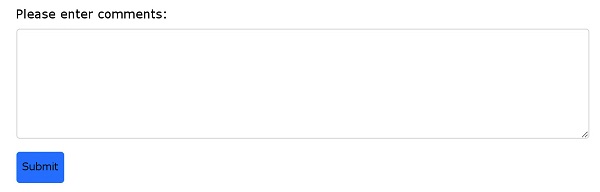
label to create a text box to submit the form, using the
.form-control
class render text box
textareas
label: 7.31.4. Example 
<label for="comment">Please enter a comment:</label>
<textarea class="form-control" rows="5" id="comment" name="text"></textarea>
Input box size 
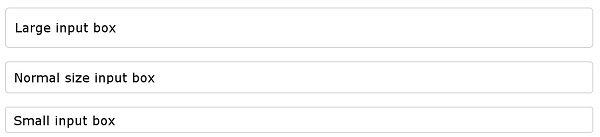
.form-control
use in the input box
.form-control-lg
or
.form-control-sm
class to set the size of the input box 7.31.5. Example 
<input type="text" class="form-control form-control-lg" placeholder="Large input box">
<input type="text" class="form-control" placeholder="Normal size input box">
<input type="text" class="form-control form-control-sm" placeholder="Small input box">
Disable / read-only form 
disabled/readonly
Property setting input box disabled / read-only: 7.31.6. Example 
<input type="text" class="form-control" placeholder="Normal input">
<input type="text" class="form-control" placeholder="Disabled input" disabled>
<input type="text" class="form-control" placeholder="Readonly input" readonly>
Plain text input 
.form-control-plaintext
Class can delete the border of the input box: 7.31.7. Example 
<input type="text" class="form-control-plaintext" placeholder="Plaintext input">
<input type="text" class="form-control" placeholder="Normal input">
Color picker 
.form-control-color
Class can create a color picker: 7.31.8. Example 
<input type="color" class="form-control form-control-color" value="#CCCCCC">
